
How to Inject Tutorial

**NOTE** THIS IS A GUIDE ONLY – FOR SUPPORT JOIN DISCORD SUPPORT AND MAKE A TICKET BUT PLEASE TRY FOLLOW THESE INSTRUCTIONS FIRST TO SAVE BOTH YOURS AND OUR TIME.

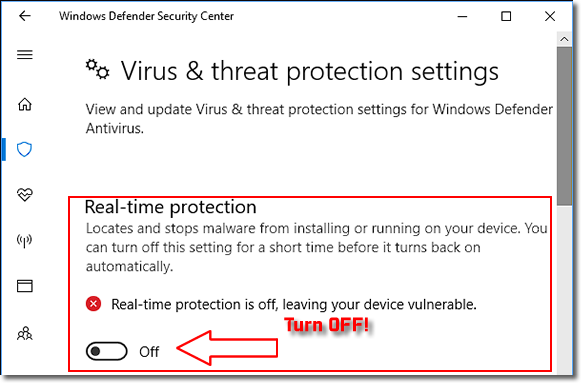
• Disable Windows Defender, Real Time Scanner 
 This is important to start the process. You will have issues if you dont.
• Disable UAC in your windows settings.
This should be off. Being off will prevent delays and errors.
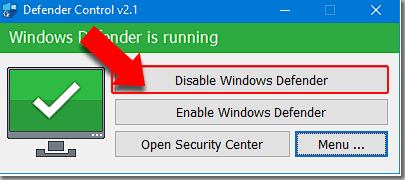
• To Disable Windows Defender Properly, download [SORDUM DEFENDER CONTROL]
You will get a message to download anyway, proceed. Once downloaded, extract to a folder, the password is: sordum
Run the Tool with admin rights, click on “Disable Windows Defender”
• Uninstall all Anti-viruses/antimalware You can always re-install, but for initial running of the loader, please uninstall.
• Install AIO Runtimes. [DOWNLOAD HERE]
Key is, when you run as admin, to select everything, even if you think its no good.
• Install DirectX Runtimes. [DOWNLOAD HERE]
• Download The Loader & EXTRACT the .zip into a folder.
If you get a Download error, change browser settings to off.
Do not run directly from the .zip file. you will have issues.
Make sure, after extraction, you rename the loader !
• Press “OK” on the dialogue box AFTER the game has loaded and on main menu.
• This is a step-by-step guide for running the loader.
• Disable all Overlays  /
/  /
/  /
/  /
/  /
/  /
/  /
/ 
Overlays, will cause ESP issues and in some cases failure to show the menu after injection.
You can always re-install, but for initial running of the loader, please uninstall.
• Enable “Virtualization”
Each system is different, mainly, boot to your bios and look for virtualization, enable and reboot
• SecureBoot
Most games need this off, some will stop you before playing and tell you to turn it on. Youll need to access your bios to disable this. To check, WIN+R type in “msinfo32” and look for Secure state: it will show off or on
• Run this reg-edit file. [CLICK HERE & MAKE SURE TO RESTART PC AFTER]
This is mostly for windows11 users, but win10 users find it useful THIS COMPLETES STAGE 1



This section will guide you on what to disable
– Navigate by, press start, type in “Windows Security”
• Click and open, “Windows Security” You will be on the main page.
We will be focusing on disabling these features: Firewall & Network Protection App & Browser Control Virus & Threat Detection, should already be disabled via “Sordum Defender control”
• Firewall & Network Protection Disable the Following: Domain Network – Click on it, then tick to show it off Private Network – Click on it, then tick to show it off Public Network (active) – Click on it, then tick to show it off
• App & Browser Control Reputation-Based Protection: Disable: “Check apps and files” Disable: “Smartscreen for Microsoft Edge” Disable: “Phishing Protection” If phishing protection isnt on your system, ignore and continue.
Isolated Browsing (leave alone)
Exploit Protection: Disable: “Control Flow Guard (CFG)” Disable: “Data Execution Prevention (DEP)” Disable: “Force Randomization for images (Mandatory ASLR)” Disable: “Randomize Memory Allocations (Bottom-Up ASLR)” Disable: “High-Entropy ASLR (ON BY DEFAULT/LOCKED)” Disable: “Validate Exception Chains (SEHOP)” Disable: “Validate Heap Integrity”
• Core Isolation
Device Security
Disable: “Memory Integrity”
THIS COMPLETES STAGE 2
*following these steps/stages will ensure that you be able to use the loader and use menu ingame.*